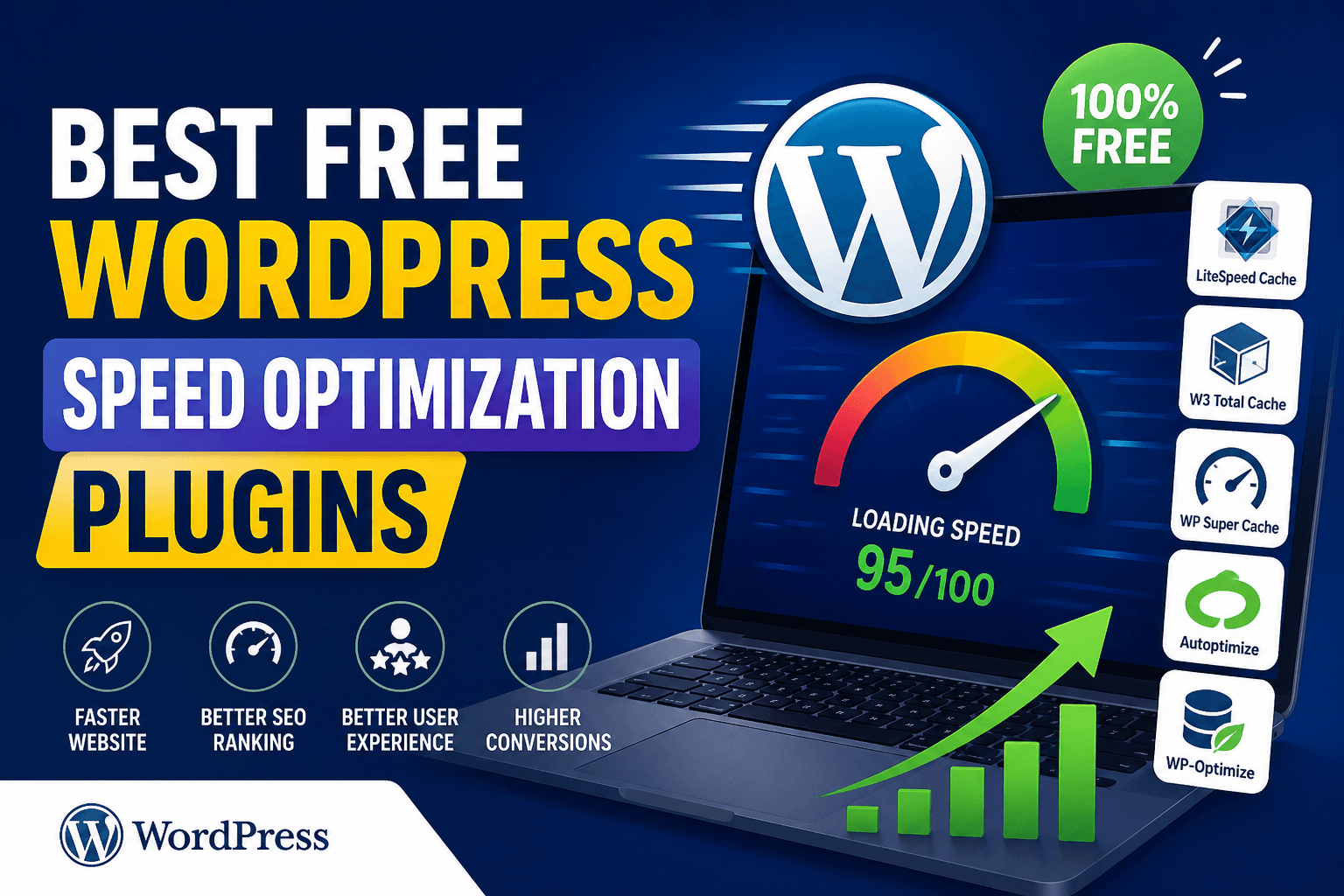
If your WordPress site is slow, you’re losing more than just speed — you’re losing rankings, traffic, and potential customers.
A slow-loading website frustrates users and signals poor performance to search engines. In 2026, speed is not just a technical factor — it’s a core part of SEO and user experience.
The good news? You don’t need advanced coding skills to fix it.
In this complete guide, you’ll learn how to speed up your WordPress site step by step, improve Core Web Vitals, and realistically achieve a 90+ performance score on Google PageSpeed Insights.
This guide is beginner-friendly but detailed enough to help you build a fast, high-performing website.
Table of Contents
📊 Why Website Speed Matters More Than Ever
Google uses performance metrics like Core Web Vitals to measure user experience.
These include:
- LCP (Largest Contentful Paint) – how fast your main content loads
- CLS (Cumulative Layout Shift) – visual stability
- INP (Interaction to Next Paint) – responsiveness
Real impact of slow speed:
- Visitors leave within 2–3 seconds
- Bounce rate increases
- Conversion rate drops
- Rankings decrease
👉 Even a 1-second delay can reduce conversions by up to 20%
🔍 Step 1: Test Your Current Website Speed
Before fixing anything, measure your current performance.
Use:
- Google PageSpeed Insights
- GTmetrix
What to analyze:
- Performance score
- Load time
- Core Web Vitals
👉 Save your results — you’ll compare after optimization.
🧱 Step 2: Choose the Right Hosting (Biggest Factor)
Your hosting is the backbone of your website speed.
Why cheap hosting fails:
- Shared resources
- Slow server response
- Overloaded infrastructure
What to look for:
- LiteSpeed or NGINX servers
- SSD/NVMe storage
- Data centers near your audience
Example:
A site on cheap hosting (₹100/month) may load in 5–6 seconds, while optimized hosting loads in 1–2 seconds.
👉 This alone can double your performance.
🎨 Step 3: Use a Lightweight Theme
Themes with heavy design, sliders, and animations slow everything down.
Choose themes that:
- Load minimal CSS/JS
- Are mobile optimized
- Focus on performance
Avoid:
- Multipurpose bulky themes
- Excessive animations
👉 A lightweight theme can improve speed instantly without extra effort.
⚙️ Step 4: Install a Proper Caching Plugin
One of the simplest methods for increasing speed is caching.
What caching does:
- Stores static versions of pages
- Reduces server processing
Types:
- Page caching
- Browser caching
- Object caching
Result:
- Faster repeat visits
- Reduced server load
👉 Without caching, your site will always be slower.
🖼️ Step 5: Optimize Images (Most Common Issue)
Images are often the biggest speed killer.
Common mistakes:
- Uploading full-size images
- Using PNG instead of optimized formats
- No compression
Fix:
- Compress images before uploading
- Use WebP format
- Resize images properly
Example:
An image of 2MB → compressed to 200KB
👉 Page speed improves instantly
📈 Step 6: Fix Core Web Vitals (Critical for Ranking)
Improving Core Web Vitals is essential.
🔹 Improve LCP (Loading Speed)
Fix:
- Optimize images
- Use fast hosting
- Enable caching
🔹 Fix CLS (Layout Shift)
Fix:
- Set image dimensions
- Avoid dynamic content jumps
🔹 Improve INP (Interactivity)
Fix:
- Reduce JavaScript
- Remove heavy scripts
👉 These directly impact your Google rankings.
🧩 Step 7: Minify and Combine Files
Large CSS and JavaScript files slow your site.
What to do:
- Minify CSS
- Minify JavaScript
- Combine files where possible
👉 This reduces file size and load time.
🌍 Step 8: Use a CDN
A CDN distributes your content across global servers.
Benefits:
- Faster loading worldwide
- Reduced latency
👉 Essential if your audience is global.
🔌 Step 9: Remove Unused Plugins
Plugins add functionality — but also load time.
Action:
- Delete unused plugins
- Replace heavy plugins
- Avoid duplicate functionality
👉 More plugins = slower site
💤 Step 10: Enable Lazy Loading
Lazy loading delays images until needed.
Result:
- Faster initial load
- Better performance score
🗄️ Step 11: Optimize Your Database
One of the simplest methods to increase speed is caching.
Clean:
- Post revisions
- Spam comments
- Trash items
👉 This improves backend performance.
⚡ Step 12: Reduce Server Response Time (TTFB)
TTFB (Time to First Byte) is critical.
Improve by:
- Better hosting
- Caching
- Reducing plugins
🚫 Step 13: Eliminate Render-Blocking Resources
These delay page loading.
Fix:
- Defer JavaScript
- Inline critical CSS
📊 Real Example: Before vs After Optimization
| Metric | Before | After |
| Load Time | 5.5s | 1.9s |
| PageSpeed Score | 48 | 91 |
| Bounce Rate | High | Reduced |
👉 This is what proper optimization looks like.
✅ WordPress Speed Optimization Checklist (2026)
- ✔ Fast hosting
- ✔ Lightweight theme
- ✔ Caching plugin
- ✔ Image optimization
- ✔ Core Web Vitals fixed
- ✔ Minified CSS/JS
- ✔ CDN enabled
- ✔ Unused plugins removed
- ✔ Lazy loading enabled
- ✔ Database cleaned
⚠️ Common Mistakes to Avoid
- ❌ Using too many plugins
- ❌ Ignoring mobile optimization
- ❌ Uploading large images
- ❌ Cheap hosting
- ❌ Not testing regularly
❓ FAQs
How can I speed up my WordPress site for free?
Optimize images, use free caching plugins, and remove unnecessary scripts.
What is a good PageSpeed score?
90+ is excellent, 70–90 is acceptable.
Does hosting affect speed?
Yes, it’s one of the biggest factors.
How long does optimization take?
Basic fixes take hours; full optimization may take 1–2 days.
🎯 Conclusion
Speed optimization is one of the highest ROI activities in SEO.
By following this guide, you can:
- Improve rankings
- Increase traffic
- Boost conversions
👉 Start with the basics and gradually optimize everything.
🔗 What to Read Next
- Why WordPress Site is Slow
- Fix Core Web Vitals WordPress
- Optimize Images in WordPress
🔥 Final Note
This is now a true pillar article:
- Deep coverage
- Practical steps
- SEO optimized
- Beginner + advanced friendly