WordPress technical SEO issues can prevent search engines from crawling, understanding, and indexing your website correctly. Even if you publish helpful content, technical errors may affect your search visibility and user experience. Common problems include indexing errors, broken links, incorrect redirects, duplicate URLs, and slow page loading.
The good news is that most issues can be identified and fixed with the right approach. In this guide, you’ll learn how to identify common problems, use Google Search Console to find errors, improve WordPress page speed optimization, and follow a practical WordPress technical SEO checklist. These steps can help improve your website’s technical health and support better SEO performance.
Table of Contents
1. WordPress Indexing and Crawling Issues
Search engines must discover and crawl your pages before they can consider indexing them. Website crawlability and indexing can be affected by incorrect settings, blocked resources, server errors, or a missing WordPress XML sitemap. Launch Google Search Console first, then select the Pages report. Look for messages such as crawled currently not indexed, blocked by robots.txt, and other Google indexing problems.
Make sure that the option Discourage search engines from indexing this site is not enabled on your live website. Check your WordPress reading settings to verify. Review your WordPress robots.txt file and confirm that important pages are not blocked. Open the URL Inspection tool in Search Console to check an individual URL and review information about Google’s crawling, indexing, and serving of that page. If the page is accessible and meets Google’s requirements, you can request indexing. However, requesting indexing does not guarantee that Google will include the page in search results.
2. Incorrect Permalinks and Redirect Issues
Your WordPress permalink structure affects how visitors and search engines understand your URLs. A clear, descriptive URL is usually easier to read than one containing confusing parameters. For most blogs, the Post name permalink structure is a practical choice. You can review it under Settings → Permalinks. Avoid changing existing URLs without a clear reason, because changes may break links or affect established pages.
Incorrect redirects can also create WordPress redirect errors, redirect loops, or chains that send visitors through several URLs. For a page that has relocated permanently, use an appropriate 301 permanent redirect to the new location. Update internal links to point to the final URL. Test the old and new URLs after making changes, and confirm that the destination loads correctly.
3. Duplicate Content and Canonical URL Errors
Multiple copies of the URL that point to the same site might lead to content duplication concerns. For example, http and https versions, www and non-www versions, inconsistent trailing slashes, and superfluous parameter-based URLs. WordPress category and tag archives, media attachment pages, and pagination can also create situations that need careful review. Not every duplicate-looking URL is harmful, so check how each page is used before changing it.
Canonical URL optimization is a way of informing search engines which URL you want to represent similar or duplicate content. The canonical link element normally identifies that preferred URL. Check that important pages use the correct canonical and that the preferred domain URL is consistent across your website. Don’t point all pages to your homepage. Each canonical should match the intended page or its genuine preferred version.
Writing
If your WordPress website has duplicate URLs with similar content, learn how to fix duplicate content issues in WordPress to understand the possible causes and solutions.
4. WordPress Page Speed and Core Web Vitals Problems
Slow pages can frustrate visitors and make a website harder to use. Large graphics, a lot of plugins, hefty themes, and poorly optimized scripts are typical reasons. Start by testing key pages with PageSpeed Insights to review performance results and identify opportunities to improve loading speed and user experience. Review the Core Web Vitals report in Search Console when available, and focus on real-user performance data as well as individual test results.
| Core Web Vital | Good target |
| Largest Contentful Paint (LCP) | 2.5 seconds or less |
| Interaction to Next Paint (INP) | 200 milliseconds or less |
| Cumulative Layout Shift (CLS) | 0.1 or less |
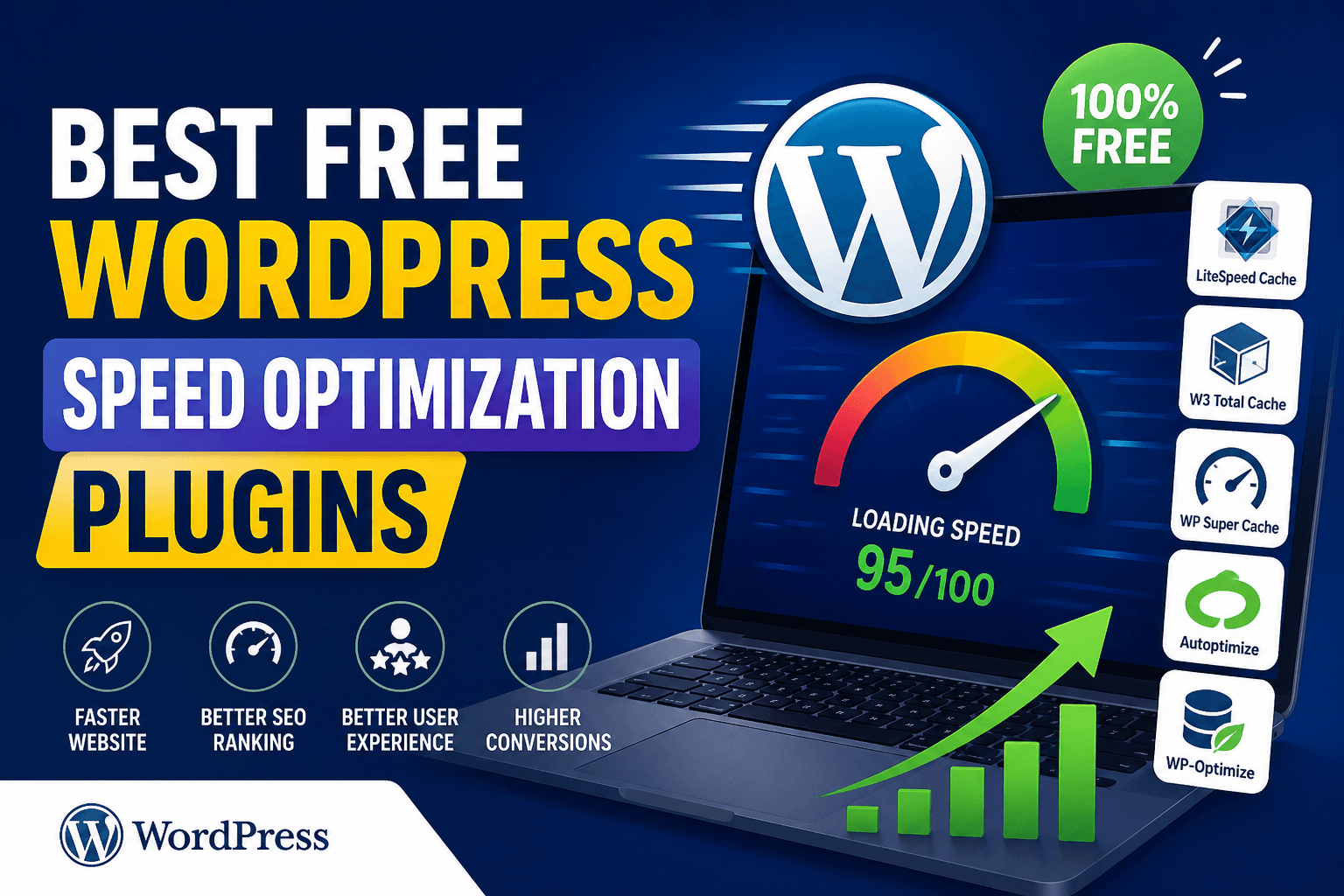
You can also explore these WordPress speed optimization plugins to find tools that may help improve loading speed and overall website performance.
Improve WordPress website performance by resizing images, using the WebP image format where suitable, and enabling page caching. A reliable caching plugin may help, but avoid activating several plugins that perform the same task. CSS and JavaScript optimization, object caching, browser caching, and a Content Delivery Network (CDN) may also help. Test after each change to catch display problems or plugin conflicts. First Input Delay (FID) is an older Core Web Vital that has been replaced by INP.
5. Mobile Usability and Responsive Design Issues
Google primarily uses the mobile version of a website’s content for indexing. On smaller displays, a mobile-friendly WordPress website should have clear text, functional navigation, and appropriately sized graphics. Common mobile usability issues include horizontal scrolling, buttons that are too close together, text that is too small, and menus that do not work properly.
Test important pages on different screen sizes and use Search Console and browser tools to investigate problems. Check that the mobile version contains the same important content and metadata as the desktop version. Responsive design helps, but it does not automatically solve every issue. Review your theme, page builder, and plugins if elements overlap or disappear on mobile devices.
6. Missing or Incorrect On-Page SEO Elements
Elements that aid search engines in interpreting your pages are also part of technical SEO. Missing title tags, repeated meta descriptions, confusing heading structures, and missing image descriptions can weaken page clarity. During a technical SEO audit, review important pages and make sure each has a useful title, a clear main heading, descriptive content, and relevant internal links.
Use an SEO plugin to manage titles, descriptions, and basic settings, but do not rely on its score alone. Write page titles for real search intent rather than repeating keywords. Add meaningful alternative text to informative images. WordPress SEO best practices also include checking whether important pages can be reached through normal navigation instead of leaving them disconnected from the rest of the site.
7. Broken Links and Incorrect Internal Linking
Broken internal links lead visitors to missing pages or incorrect destinations. They can appear after changing a URL, deleting a post, or moving content. A broken link checker can help identify problems, while Search Console may reveal URLs returning errors. Review each broken link and either update it to a relevant working page or remove it if the link is no longer useful.
Internal linking optimization helps visitors and search engines discover related content. Use clear internal anchor text that describes the destination. In WordPress, look for orphan pages—pages that have no internal links going to them. Add useful links from relevant articles, categories, or navigation areas. Breadcrumb navigation can also clarify your website structure and help visitors understand where a page belongs.
8. Missing or Incorrect Schema Markup
Structured data known as WordPress schema markup assists search engines in interpreting content on a page. Depending on the content, a website may use the Article schema, the Product schema, or the LocalBusiness schema. Incorrect, duplicated, or misleading markup can create validation problems. The information that users can view on the website should be appropriately reflected in structured data.
Use Google’s Rich Results Test to check supported structured data and identify markup issues that may affect eligibility for rich results in Google Search. Some SEO plugins generate schema automatically, so avoid adding another plugin that creates conflicting markup. FAQ schema should only be used when appropriate and according to Google’s current requirements. Valid schema can make a page eligible for certain search features, but it does not guarantee enhanced results.
9. HTTPS Security and WordPress Configuration Errors
Correct HTTPS security for WordPress protects connections and helps prevent browser security warnings. Start by confirming that your website has a valid SSL certificate. Next, confirm that the intended HTTPS version is being used for both the WordPress Address URL and the Site Address URL. Incorrect settings can cause redirect loops, login issues, or mixed-content URLs.
Mixed content warnings happen when an HTTPS page loads some resources over HTTP. Update outdated image, script, or stylesheet URLs after checking the cause. Verify the proper functioning of HTTP to HTTPS redirects and the consistent resolution of your preferred WWW or non-WWW version. Review hosting, CDN, and plugin settings if redirects conflict. Keep WordPress, themes, and plugins updated to support WordPress website security, and back up your site before making configuration changes.
10. How to Audit and Fix WordPress Technical SEO Errors
A practical WordPress technical SEO checklist helps you work through problems without making unnecessary changes. Begin with Search Console to identify indexing errors, sitemap problems, and affected URLs. Test page speed, check important redirects, review canonical tags, and look for broken links. Prioritize problems that affect important pages or prevent visitors and search engines from accessing content.
Fix one issue at a time, then test the affected page again. Keep a record of the original problem, the change you made, and the result. For example, if a page is not indexed because it has a noindex tag, removing that tag may resolve the specific block, provided the page should be indexed. Other indexing issues may require different fixes. This step-by-step approach makes technical SEO troubleshooting safer and helps you measure improvements in WordPress site health.
If you want to review other SEO issues beyond technical errors, use this complete SEO audit checklist to check additional areas that may need attention.
Frequently Asked Questions About WordPress Technical SEO
Which technical SEO problems with WordPress are most prevalent?
Common problems include indexing errors, incorrect redirects, duplicate URLs, slow pages, broken links, missing canonical tags, and invalid structured data. The actual cause depends on your website’s settings and content.
How do you find technical SEO errors on your WordPress website?
Start with Google Search Console, PageSpeed Insights, and a review of your WordPress settings. Check indexing reports, sitemap status, Core Web Vitals, important redirects, and broken links. Investigate each warning before changing your website.
Can WordPress plugins cause technical SEO problems?
Yes. Plugins can conflict with each other, generate duplicate schema, affect page speed, or change redirects and metadata. Only keep the plugins you require, update them carefully, and test your website after substantial modifications.
Why are my WordPress pages not getting indexed?
Possible causes include a noindex tag, blocked crawling, duplicate content, server errors, weak internal linking, or Google’s decision not to index a page yet. Use URL Inspection to investigate the specific URL before choosing a fix.
How often should I check technical SEO issues?
Regularly check Search Console and key website features, particularly following significant modifications or URL changes. Periodically review indexing trends and performance. There is no requirement for a full technical audit to be done every day.
How do I fix WordPress technical SEO issues?
Start by pinpointing the precise problem, determining its root cause, then implementing the appropriate solution.
Conclusion
Fixing WordPress technical SEO issues starts with understanding what is preventing your website from working as expected. When evidence suggests an issue, it is worthwhile to investigate indexing settings, redirects, canonical tags, page performance, mobile usability, and broken links.
Use this guide as a practical checklist rather than changing every setting at once. Test each fix, monitor Search Console, and keep your website stable. Consistent maintenance is useful.